60-Second Summary
Effective lead generation is about finding the right prospects, not just increasing traffic. Using Leadfeeder’s custom feed filters — exemplified by Hallam’s focus on company size, location, job title, and industry — lets sales teams prioritize high-value leads and close more clients within budget.
Key takeaway: Targeting leads that match your ideal customer profile drives better results than chasing all inquiries—filter by industry, company size, location and job title to surface qualified prospects.
Standout strategies and tactics: Use visit count and visit duration filters to infer intent and persona, build custom feeds for recurring visitors (start with ~5 visits), and tailor outreach based on pages viewed (e.g., Pricing vs About).
Operational tactics and integrations: Leverage CRM filters and integrations (e.g., Pipedrive, HubSpot) to track deal ownership, measure follow-up quality, and sync Leadfeeder intel to reps for timely action.
Real-world lessons and frameworks: Use activity and tag filters to monitor team interactions, identify top performers, tag competitors or ‘unicorn’ accounts for pattern analysis, and create counterintelligence or nurture feeds to accelerate conversions.
*This summary was created with AI assistance, using our original content.
Take a skills development company like Hallam, for example. They offer training to large organizations, so leads like freelancers looking for one-on-one coaching were not a good fit. Instead of chasing every inquiry, they focused only on the right ones by filtering based on location, company size, job title, and industry, resulting in dozens of qualified clients within budget.
The takeaway is simple. Effective lead generation is not about getting more traffic. It is about targeting the right audience.
With Leadfeeder, custom feed filters help you do exactly that. You can refine your data, prioritize high-value prospects, and improve your sales team's performance by focusing only on leads that match your ideal customer profile.
Most users already rely on basic filters like industry, page URL, employee count, and country. However, that is only the surface level. There are lesser-known filters that can unlock deeper insights, helping you navigate your data more efficiently, prioritize the right leads faster, and drive better sales outcomes.
Note: Attract the right kind of leads on LinkedIn. You can try Leadfeeder free for 14 days here.
1. Number of visits and visit length
Web intelligence is our forte here at Leadfeeder. Our guiding philosophy is simple:
To place actionable marketing and sales insights into the hands of salespeople.
Our filters give you more control of your data, allowing you to glean granular insights or connect obscure “dots” that often fly under the radar.
Take our number of visits and visit duration filters, for example. These filters show how many times a lead visits your site and how long they stay. In the visit details, you can see the individual page visits and the time spent on each page.

When analyzing the visit details, if you filter by number of visits or visit duration in Leadfeeder, you can use this information to:
Segment and score your leads
A lead who spends 5 minutes on your “Pricing” page will have a stronger intent to purchase than one who bounces after landing on your “About Us” page.
Chances are, you have multiple personas buying from you at the same time. Each one will spend more time viewing content that is more relevant to them.
Using the number of visits and length-of-visit filters, you can gauge which persona they fall under and adapt your outreach and communication accordingly.
Serve as a base for personalized outreach
A customer has repeatedly visited and spent a lot of time reading reviews on your site. They also downloaded your 1-page checklist for communicating better.
Using the information above, sales can nudge this lead further down the funnel with a credibility-driven nurture campaign.
To improve response rates, social outreach can be improved with personalized offers and content.
This is exactly what our customer Wouter Dieleman, who works for communications company OZMO, did to win more leads.
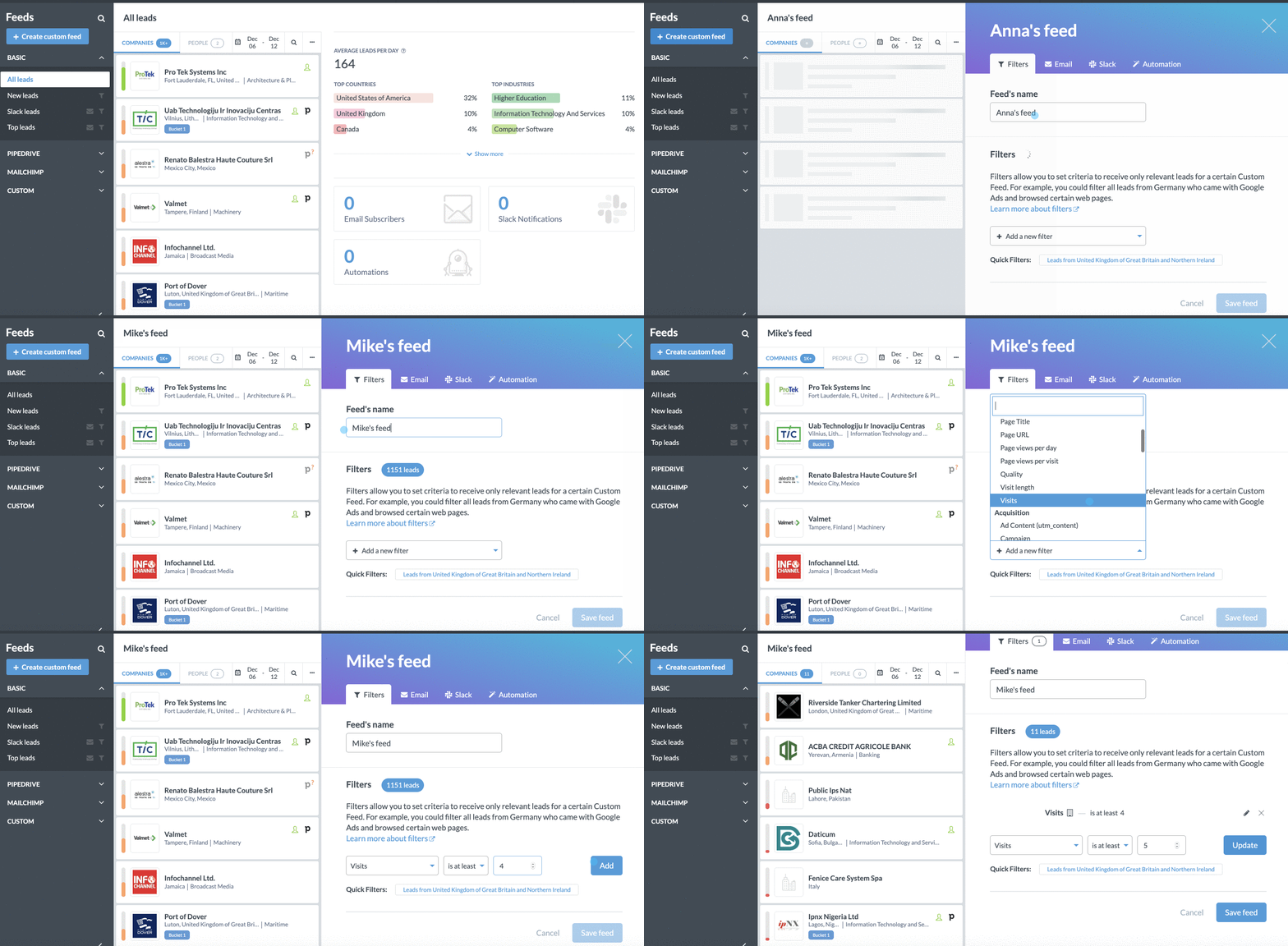
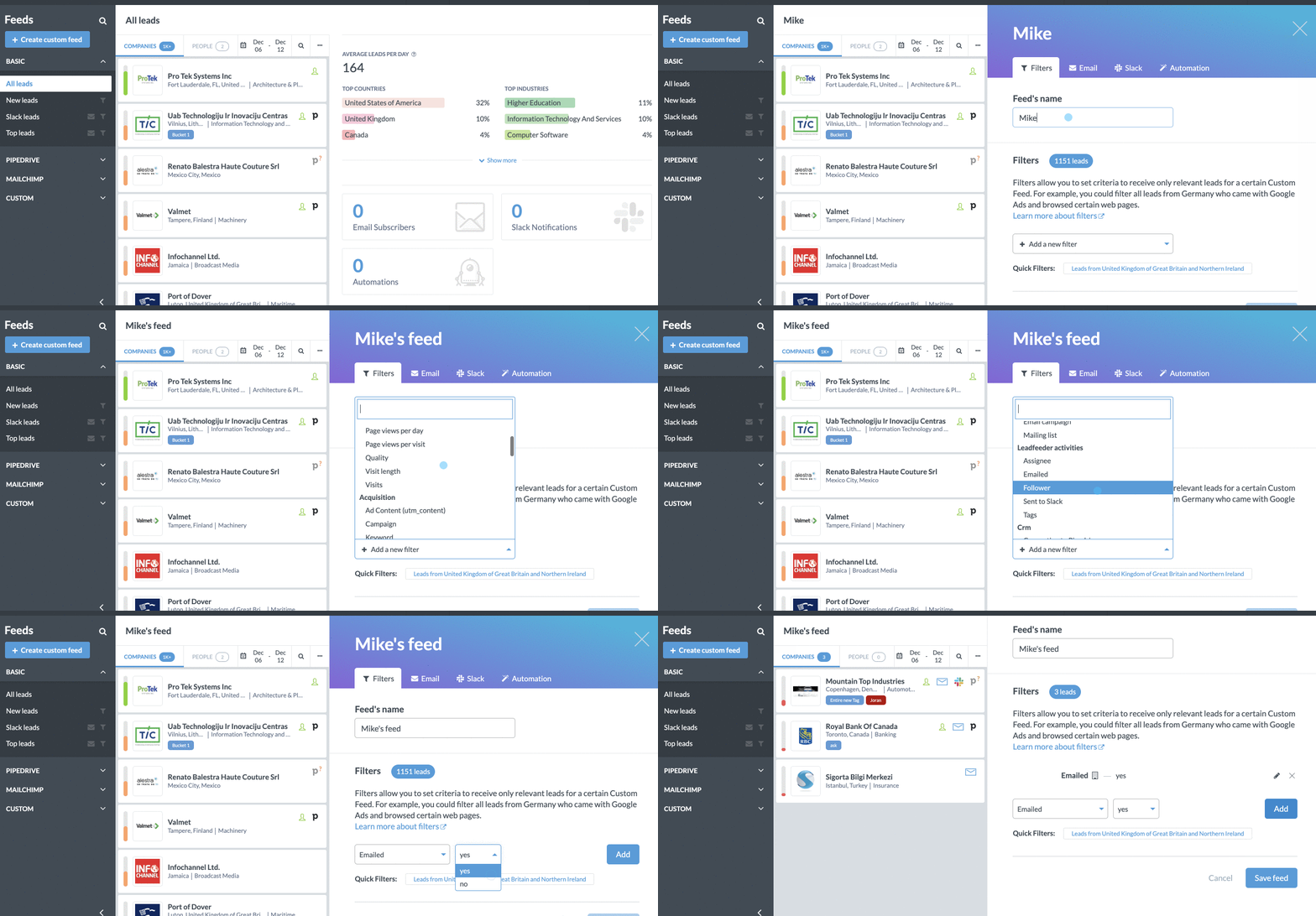
To create this custom filter based on the number of visits, follow these steps.
Step 1: Click the blue-button in the top left corner titled “Create custom feed.”
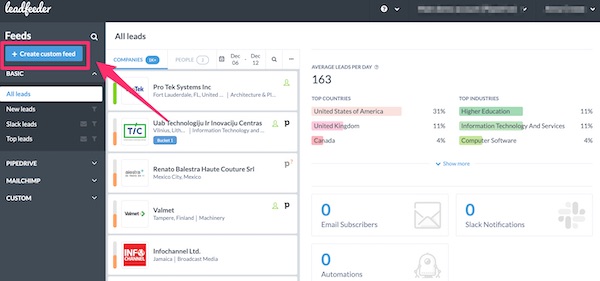
Step 2: Name your custom feed filter (ex, Mike’s feed). Then use the drop-down to adjust the number of visits.

Note: Salesforce states it takes 6 to 8 touches to generate a viable sales lead. So, I recommend starting with a lower number, like 5. If companies are visiting your site 5 or more times, they are most likely interested.
Step 3: Click “Add.” Then, “Save Feed.” And, voila! ✨ Your custom filter should display immediately.
Here is a quick snapshot of all of the steps. 👇
2. CRM filters
If you want to attract, nurture, or close leads at different stages, you first need to identify their level of engagement and purchase intent.
The CRM filter simplifies this task. You can use it to view the owners of items in your CRM to monitor actions and measure progress.
And, not only does the CRM filter show the deals owned by a single individual, but it also reports progress on the deal and the quality of follow-up.
It helps answer the all-important sales question: Do your sales team’s actions reflect the performance needed to hit your sales goals?
Luckily, Leadfeeder integrates with multiple CRM software (like Pipedrive). With our Pipedrive integration, users can provide powerful intel to sales reps out in the field by sending lead information from Leadfeeder to Pipedrive.
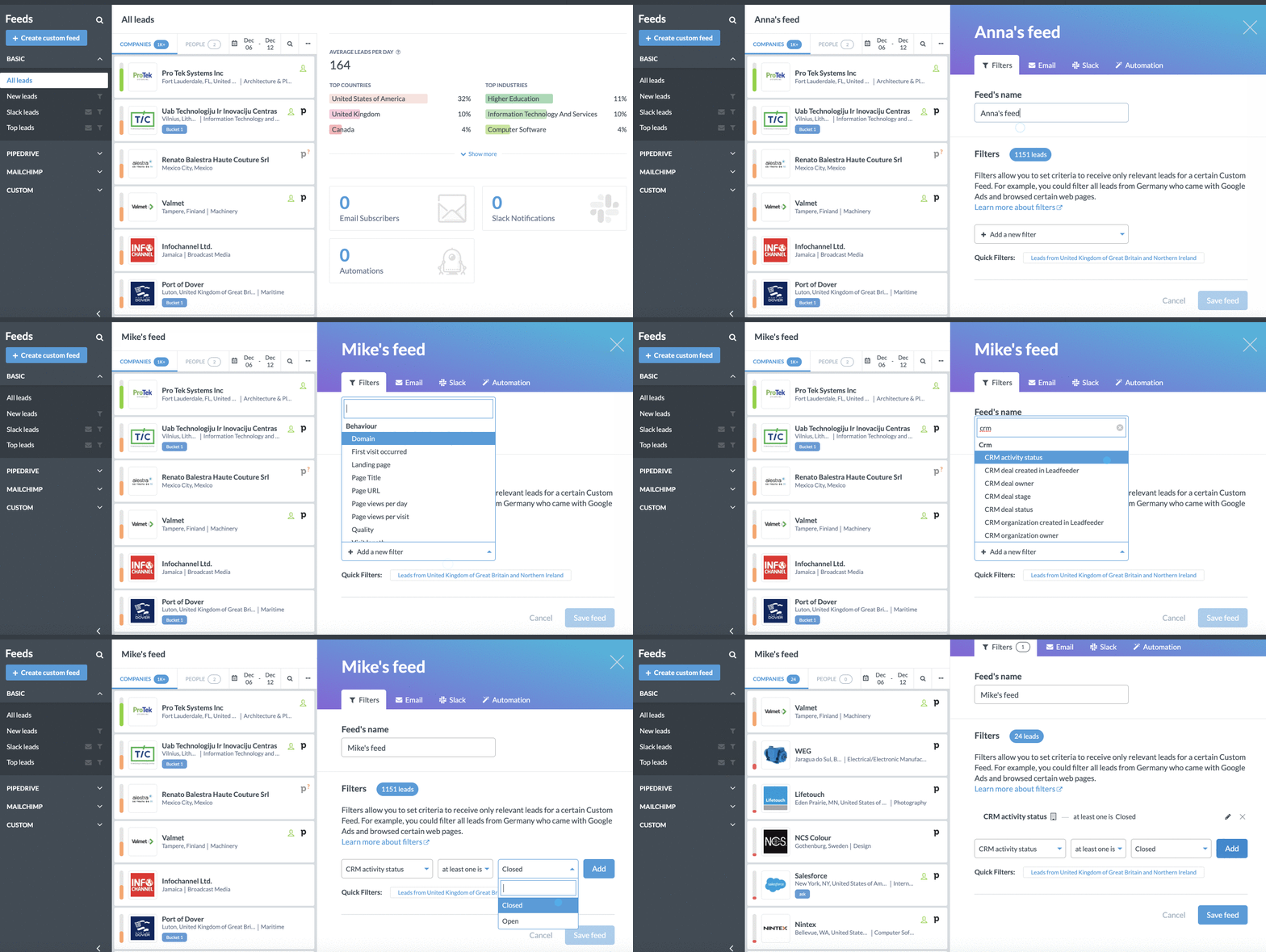
To set up your CRM custom filters in Leadfeeder, follow the same steps as above.
Step 1: Click the blue-button in the top left corner titled “Create custom feed.”
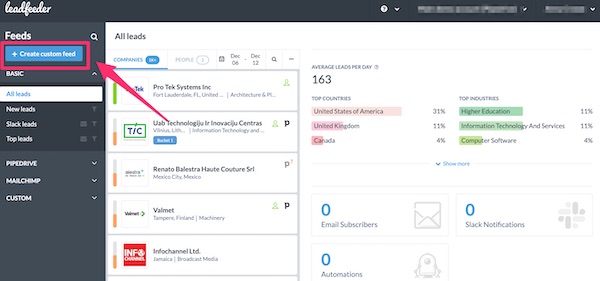
Step 2: Name your custom feed filter (ex, Mike’s feed). Then, search for the CRM filter options in the drop-down.

Again, here is a quick look at all of the steps. 👇
3. Leadfeeder activities
For teams with complicated sales campaigns, questions like: Who’s doing what, to whom? And how have they done it?
Are often sources of stress. Helping you manage and monitor your team’s interactions with leads, the Leadfeeder activities filter eases the stresses of working in a team.
Using the activity filter, you can:
See who owns operations when no CRM is integrated
This provides real-time feedback on how leads are being processed. It outlines the workload, bandwidth, and performance of each team member.
You can also review how many leads have been assigned to colleagues, or check who receives notifications when prospects return to your site (through the follower filter)
Top performers can be quickly identified, and underperformers can be circled for help or have their lead quality reviewed.
Categorize leads with the tag filter
Using the tag filter, you can create custom feeds to better track leads—and even “spy” on competitors.
By tagging all competitors, for example, you can create a feed of “active” competitors and view their browsing behavior. Then use this counterintelligence feed to pre-empt their next moves.
Another example is tagging visits from your dream or unicorn leads. Then, viewing the feed later to analyze behavioral patterns and trends of ideal customers.
To set up custom feed filters for your Leadfeeder activities, follow the same steps as above.
Step 1: Click the blue-button in the top left corner titled “Create custom feed.”
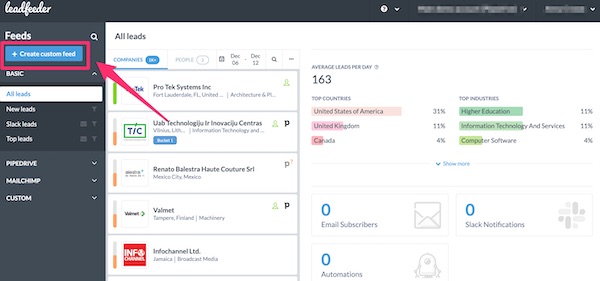
Step 2: Name your custom feed filter (ex, Mike’s feed). Then, search under the Leadfeeder activities in the drop-down.
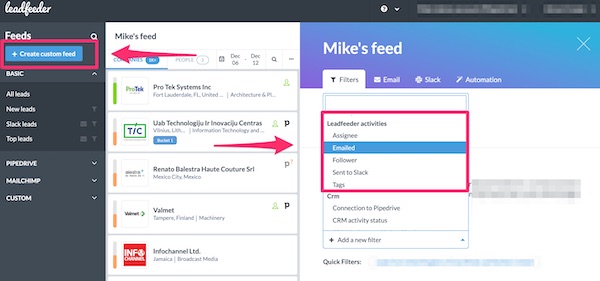
And, to follow the trend above, here is a peek at all of the steps.👇
Optimize your lead generation with Leadfeeder
Leadfeeder helps you make better data-driven sales campaigns.
Our filters, which easily integrate into most CRMs, (we’re also a HubSpot integration partner) let you adapt Leadfeeder to your individual sales goals.
Monitor, adjust, and optimize sales campaigns from a single place. And don’t forget to use all available filters to power up your lead generation.
Note: Attract the right kind of leads in LinkedIn. You can try Leadfeeder free for 14 days here.

Content Marketing Manager @ Leadfeeder
Sanjana Murali is a Product Marketing Manager at Leadfeeder with more than a decade of experience in B2B SaaS product marketing and content strategy. She specializes in translating complex product capabilities into clear messaging that resonates with marketing and sales teams.
Sanjana has led product launches, developed messaging frameworks, and built content strategies that help companies understand and act on buyer intent. Her work bridging product, marketing, and customer insights informs her perspective on how businesses can identify website visitors and turn anonymous traffic into actionable sales opportunities.