An IP (internet protocol) address is a unique set of numbers that identifies a device or network used to access the internet. It's equivalent to a house address, but for your computer. There are public IP addresses and private IP addresses.
“A public IP address identifies you to the wider internet so that all the information you're searching for can find you. A private IP address is used within a private network to connect securely to other devices within that same network. Each device within the same network has a unique private IP address.” -Avast.com
Just like you need to know someone's street address to send them a letter or phone number to call, networks need to know a computer's IP geolocation to send data.
In this guide, you'll learn how to find a company by IP address step-by-step, including manual lookup methods and automated tools.
Leadfeeder uses IP addresses to identify companies so B2B companies can find opportunities and drive ROI. Try us free for 14 days.
How to Find a Company’s IP Address
Every IP address is registered to the company or host that uses it. So, how do you find specific IP addresses for companies in real-time? There are a few ways.
Step 1: Open the command line
On Windows, open the search bar and type Command Prompt
On Mac, open Spotlight and search for Terminal
Step 2: Ping the website
Type the following command:
ping www.example.com
For example:
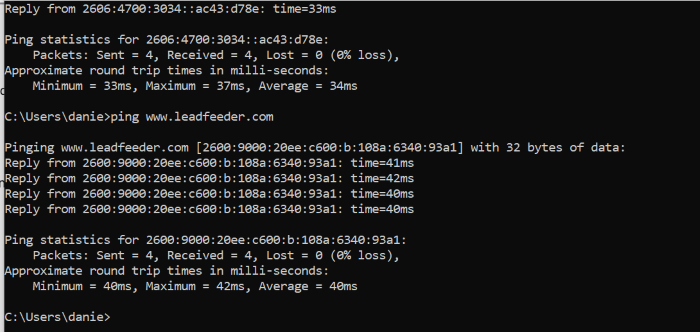
ping www.leadfeeder.com
Essentially, your computer sends a ping to the website and converts the IP address into a company name. You'll get a response, which looks like this:
How to Find a Company by Its Address
1. Use an IP lookup or WHOIS tool
If you already have an IP address, you can plug it into an IP lookup tool, like whoisthis, to find out what company the IP address is from, then look them up on LinkedIn.
This typically reveals:
Organization name
Network provider
Location
ISP information
You can see if they fit your ideal customer profile and go from there.
2. Run a reverse DNS lookup
You can also use a reverse DNS lookup, which is what Leadfeeder does. This identifies the domain name connected to an IP address. This method helps determine which company network the address is associated with.
However, these methods can be time-consuming and often don’t tell you what that company actually did on your website.
There’s also another limitation: most analytics tools don’t show you visitor IP addresses.
For example, Google Analytics tracks IP addresses but doesn't share them with site owners.
You can capture IP addresses using Google Tag Manager, but it's complicated to set up and could violate privacy laws, depending on where your traffic originates.
If only there were an easier way to identify companies by their IP address, and turn that information into data you could use.
Well, there is. This is where tools like Leadfeeder come in.
How Leadfeeder Identifies Companies by IP Address
Leadfeeder uses reverse IP address lookup to see what companies visit your website.
The platform matches IP addresses with a large database of company profiles to reveal information such as:
Company name
Location
Industry
Company size
Revenue
Pages viewed on your website
Leadfeeder pairs this data with its proprietary company database, allowing you to see not only which companies visited your site, but also details such as their location, industry, company size, revenue, and onsite behavior, like the pages they viewed.
Essentially, lighting up the “dark funnel”.
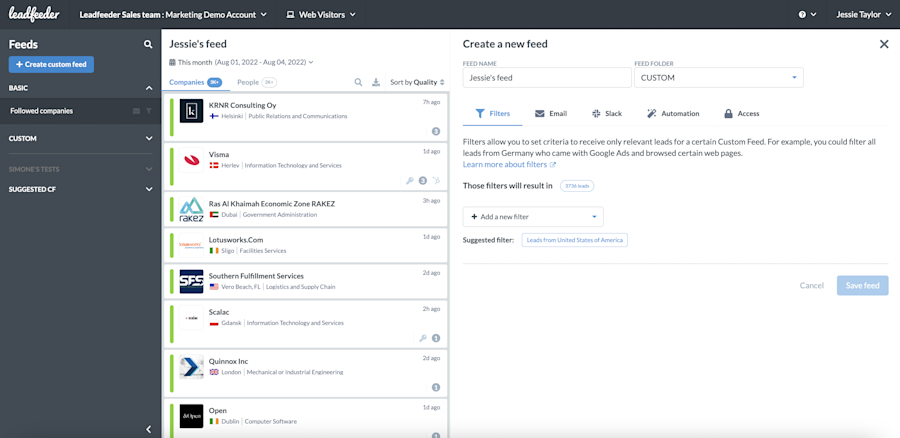
Here's what you'll see when a lead visits your site.
1. Website Visit Insights
If your site is integrated with your email marketing platform, you can see exactly who visited your website and what pages they clicked.
Even without integrations, you’ll still see key firmographic information such as:
Company name
Pages viewed
Website
Industry
Location
Company size
This makes it easier to understand which companies are engaging with your content.
2. Contact Information for Potential Stakeholders
Leadfeeder also includes a “contact” section that provides details of potential stakeholders from companies visiting your website.
These contacts aren’t necessarily the exact individuals who visited your site, but they’re likely to be involved in the buying process.
Where possible, Leadfeeder also provides social profiles and email addresses to help your sales team connect with the right people.
3. Custom Feeds for Ideal Customers
With custom feeds, you can tell us exactly who your ideal customer is—their location, industry, revenue, even specific behaviors you want to track—and we'll notify you every time you get a visit from a company that fits your parameters. (Don't worry, you can customize these notifications!)
Even better, creating custom feeds takes less than a minute.
4. Automating Lead Management
You can also automate the lead management process by connecting Leadfeeder to your sales and marketing platforms.
For example, you can:
Send small-business leads directly to a specific sales representative
Notify marketing when someone downloads a whitepaper
Automatically push visitor data into your CRM
All of these features (and more) start by finding company IP addresses.
Now You Know How to Find a Company by Its IP Address, What’s Next?
Finding a company by its IP address provides access to more information than you might think. And, it doesn't violate privacy laws, including GDPR. Think of all of the ABM possibilities — they’re endless.
The data we provide can be used to qualify leads more effectively, speed up sales response times, and ensure your marketing tracking is on point. Also, Leadfeeder sends data directly to your CRM.
What are you waiting for?
Identify companies by IP address and learn where they are in the buying process with Leadfeeder. Our dashboard identifies companies on your site and tracks onsite behavior to help streamline marketing efforts and drive close rates.

Content Marketing Manager @ Leadfeeder
Sanjana Murali is a Product Marketing Manager at Leadfeeder with more than a decade of experience in B2B SaaS product marketing and content strategy. She specializes in translating complex product capabilities into clear messaging that resonates with marketing and sales teams.
Sanjana has led product launches, developed messaging frameworks, and built content strategies that help companies understand and act on buyer intent. Her work bridging product, marketing, and customer insights informs her perspective on how businesses can identify website visitors and turn anonymous traffic into actionable sales opportunities.