Every week, the same ritual.
You open a list, filter out companies that are too old or already contacted, add new ones from the CRM export, check who got an SDR assigned, remove the duplicates you can see, and hand it off. By the time the SDR reaches account number 40, account number 1 is already cold. And next Monday, you do it again. Meanwhile, companies are visiting your website, hitting your pricing page, crossing your intent score threshold, and by the time someone rebuilds the list, the moment has passed.
It isn't that the logic is wrong. The logic is usually fine. The problem is that it only runs when someone has time to run it. Which means it runs late. Which means opportunities are missed.
Workflows solve this at the source. Instead of rebuilding your list, you define the logic once and let it run continuously in the background. New companies that match your criteria get picked up the moment they appear: enriched, tagged, routed, and ready for outreach, without anyone touching a spreadsheet.
This playbook shows you how to make that shift inside Leadfeeder. You'll identify the one list you rebuild most often, map the logic behind it, build it as a Workflow, connect it to your CRM and Slack, validate it against a manual run, and then layer in AI enrichment so the research is done before the SDR sees the account.
Step 1: Identify the list you rebuild most often
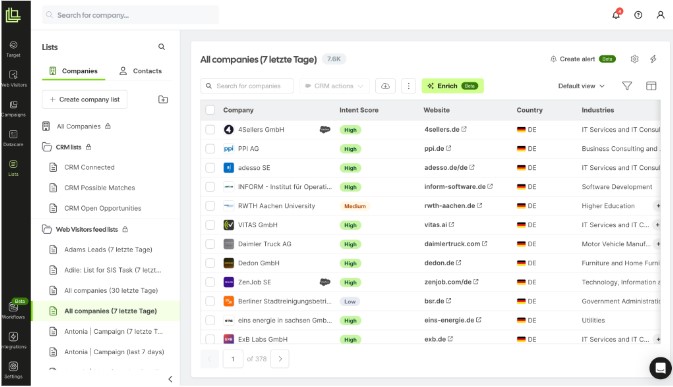
Start with the honest question: what list does your team touch every week?
Common candidates:
The SDR daily call list: filtered by recent website visitors who match ICP
The outbound target list: refreshed with new companies matching a segment
The high-intent inbound list: website visitors who hit a score or page threshold
The CRM enrichment queue: accounts missing key fields that need updating
Pick one of your lists in Lists. The best starting point isn't the most complex process. It's the most repetitive one. The list where the effort of rebuilding it is clearly out of proportion to the value any individual rebuild adds.
Write down, in plain language, the logic behind that list. Something like:
"Every Monday I filter Web Visitors for companies in the DACH region, in the manufacturing or logistics industry, with 100-plus employees, who visited the product page in the last 7 days. I add them to the SDR list and assign the DACH rep."
That sentence is your Workflow, already written in natural language. You're about to turn it into automation.
Step 2: Map the trigger, conditions, and actions
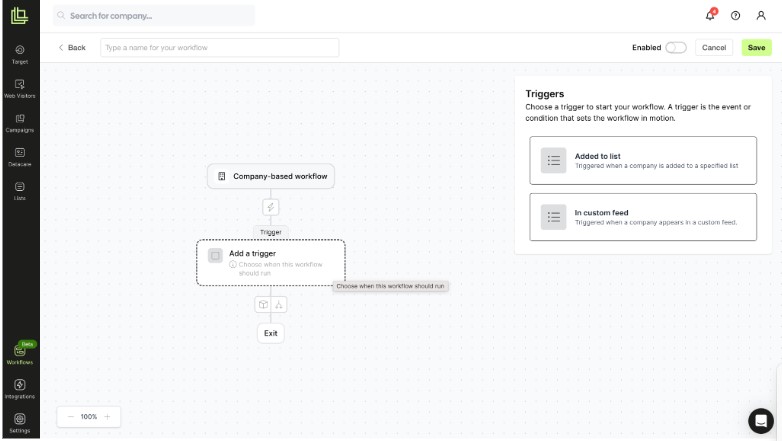
Workflows are built from three building blocks:
Trigger: something that starts the Workflow (a new company enters a list, a score crosses a threshold)
Condition: a check that routes the company down a true or false path (does it match your ICP? is the score above 7?)
Action: what happens next (enrich, find contacts, push to CRM, send a Slack alert, assign an SDR)
Take your plain-language description and break it into the three blocks.
Using the example above:
Trigger: New company enters the "Web Visitors" list
Conditions:
Region = DACH
Industry = manufacturing OR logistics
Employee count ≥ 100
Visited product page in last 7 days
Actions:
Add to "SDR DACH Hot Accounts" list
Assign owner = DACH SDR rep
Create CRM task: "Follow up within 24 hours"
Send Slack alert to DACH rep channel
This mapping exercise is useful even before you touch the Workflow builder. It forces you to be explicit about what you actually want, and surfaces any assumptions or gaps in the logic you hadn't noticed when you were doing it manually.
A few things to check at this stage:
Is the trigger specific? "New company enters list" is clear. "Company does something" is not.
Are the conditions AND or OR? Does the company need to match all conditions, or any of them?
Is the action the right one, or are you trying to automate a step that still needs human judgment?
Step 3: Build the Workflow
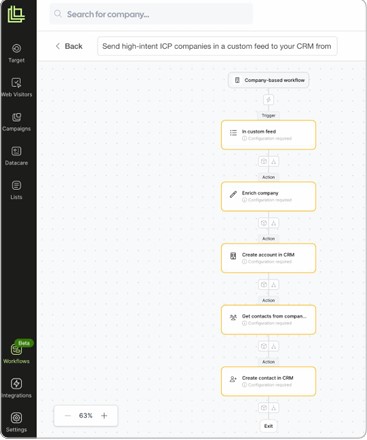
Open the Workflows builder from the left navigation bar. You can start from a ready-made template or build from scratch.
If you're building from scratch:
Set the trigger. Choose the event that starts the Workflow. The most common trigger is a company entering a specific list. For testing, use a manual run trigger so you can fire the Workflow on a small set of known companies before going live.
Add your first condition block. This is the true/false fork. Companies that match your criteria go down the "true" path. Companies that don't go down the "false" path, where you can choose to do nothing, or take a different action like tagging them for review.
Add your actions. Actions execute in sequence: run enrichment, find contacts, move to a list, assign owner, push to CRM, send alert. You can chain multiple actions in one path.
Add a second condition block if needed. For example: first condition checks industry and size; second condition checks AI enrichment output (ICP Fit Score ≥ 7). Only companies that pass both conditions reach the final action.
Save and test. Run the Workflow manually on a small set of known companies first. Check that the right companies pass each condition, and that the actions fire correctly.
Tip: Use the false path. Don't just let non-qualifying companies disappear. Route them somewhere useful: a "Needs review" list, a re-engagement queue, or a "Low fit" tag. A well-designed false path gives you signal about what your Workflow is catching and what it's missing.
Step 4: Connect to your CRM and Slack
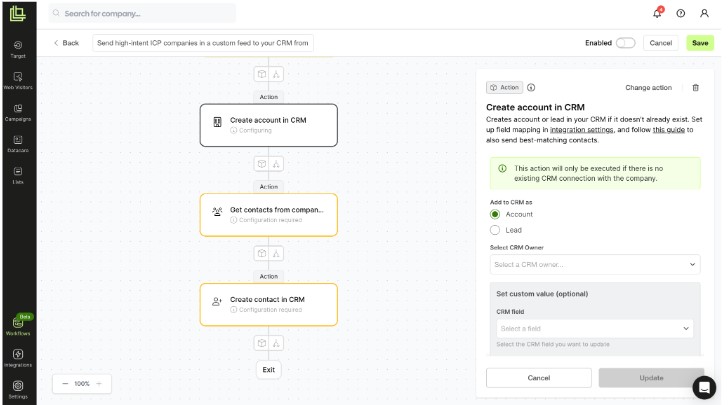
A Workflow that runs without surfacing anything to your team isn't useful. The action layer is where the intelligence becomes visible.
CRM actions you can configure:
Create or update a company record
Create a task or activity (e.g. "Call this account, qualified by Workflow, high ICP fit")
Update a field (e.g. set "Lead Source" = "Workflow - DACH Visitors" or push intent score)
Assign an owner
Note: pushing intent signals, AI enrichment outputs, and owner assignments works on all eligible plans. Full CRM firmographic refresh (address data, company size updates) requires the separate CRM Enrichment feature, available on Enterprise.
Slack alerts:
Slack is often the fastest channel for time-sensitive signals. Configure alerts to:
Fire on a specific Slack channel (e.g. #sdr-dach-alerts)
Include company name, score, and the reason it qualified (which Workflow triggered it)
Link directly to the company profile in Leadfeeder
Keep alerts signal-dense but short. SDRs don't need a paragraph. They need company name, why it qualified, and one click to act.
Good Slack alert format:
🔔 Acme Corp qualified via DACH Visitors Workflow ICP Fit: 8/10 · Visited: /pricing · Employees: 240 [View in Leadfeeder]
Tip: Don't alert on everything. If every company that enters a Workflow triggers a Slack message, the channel becomes noise and people stop reading it. Reserve Slack alerts for your highest-confidence signals: Tier 1 ICP, pricing page visits, post-enrichment scores above a threshold.
Step 5: Validate the logic in a List before promoting
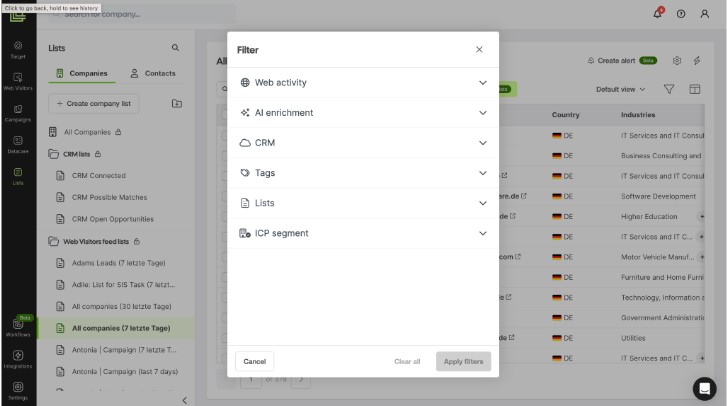
The fastest way to build confidence in a Workflow is to run the equivalent logic manually in a List first. This is the step that separates a Workflow that lasts from one that gets quietly disabled three weeks after launch.
Before activating a new Workflow:
Apply the same conditions as manual filters in a List
Review a sample of 20 to 30 companies that would pass
Ask the rep who'll work the accounts: do these look like the right accounts?
If yes, promote the logic to a Workflow and activate it
For the first week, review the Workflow output alongside the manual list to check they match
This protects you from building automation on top of broken logic. It's much easier to adjust a filter in a List than to debug a live Workflow that's been routing accounts to the wrong rep for three weeks.
Once the Workflow has been running cleanly for two to four weeks, you can retire the manual rebuild entirely. The Workflow is now your list.
For the full playbook on validating qualification logic in a List, see: How to Research and Qualify Every Account in Your List, at Scale.
Step 6: Add AI enrichment as a Workflow action
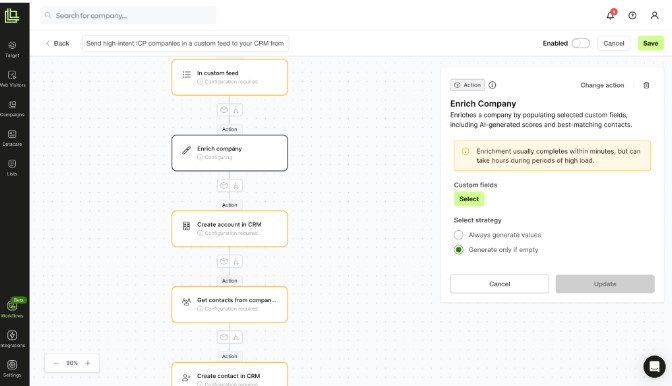
The most powerful use of Workflows is combining them with AI enrichment via an agent, so research happens automatically as part of the qualification motion.
Instead of:
Company enters list → Workflow checks basic firmographic conditions → Routes to SDR
You get:
Company enters list → Workflow checks basic firmographic conditions → Enriches with AI agent → Checks enrichment output score → Routes to SDR with research already done
This means your SDR doesn't just get a notification that a company qualified. They get a notification that a company qualified and the ICP fit score is 8/10 and the company is actively hiring in sales and the best contact is already in the CRM.
How to add enrichment to a Workflow:
After your initial condition block, add an action: Enrich with AI Agent
Select the prompt you want to run (or write a new one)
Set the output field (e.g. ICP Fit Score, Hiring Signal, ESG Committed)
Add a second condition block that checks the enrichment output (e.g. ICP Fit Score ≥ 7)
Only accounts that pass the enrichment condition reach the final routing action
This two-stage structure (basic firmographic filter first, enrichment-based qualification second) keeps your Workflow fast and targeted. Only accounts that pass the first filter get enriched, which means you're not running enrichment on companies that were never going to qualify anyway.
One system, two modes. The same filtering logic powers both Lists and Workflows. Anything you can filter or score in a List works as a Workflow condition. No rebuilding, no relearning.
What to do next
Once your first Workflow is live, the next steps are about expanding the motion without losing the discipline.
1. Review Workflow output weekly for the first month
Automation doesn't mean unsupervised. Check what's being routed, ask the SDR whether the accounts feel right, and adjust conditions if the quality drifts. The goal is a Workflow that gets more accurate over time, not one that gets ignored.
2. Build your second Workflow
Once the first Workflow has been running cleanly for two weeks, pick the next most repetitive process. Build it the same way: identify the list, map the logic, validate in a List, promote to a Workflow. The second one will take half the time of the first.
3. Name Workflows by purpose, not mechanics
"DACH ICP Visitors, SDR Routing" is a useful name. "Workflow 3" is not. When you have ten Workflows running, you'll be grateful you named them clearly.
4. Design the false path
The accounts that don't qualify are data too. Route them to a "Low fit" list, or tag them for a re-engagement Workflow in 30 days. Don't just let them disappear.
5. Keep enrichment prompts consistent across Lists and Workflows
If you use an AI prompt in a Workflow, use the exact same prompt in the corresponding List for validation and comparison. Diverging prompts produce diverging results.
6. Retire the manual rebuild
After two to four weeks of clean Workflow output, retire the manual list rebuild entirely. The Workflow is now your list. Reclaim the hour every Monday that used to go to it.
What to do next
Once your first Workflow is live, the next steps are about expanding the motion without losing the discipline.
1. Review Workflow output weekly for the first month
Automation doesn't mean unsupervised. Check what's being routed, ask the SDR whether the accounts feel right, and adjust conditions if the quality drifts. The goal is a Workflow that gets more accurate over time, not one that gets ignored.
2. Build your second Workflow
Once the first Workflow has been running cleanly for two weeks, pick the next most repetitive process. Build it the same way: identify the list, map the logic, validate in a List, promote to a Workflow. The second one will take half the time of the first.
3. Name Workflows by purpose, not mechanics
"DACH ICP Visitors, SDR Routing" is a useful name. "Workflow 3" is not. When you have ten Workflows running, you'll be grateful you named them clearly.
4. Design the false path
The accounts that don't qualify are data too. Route them to a "Low fit" list, or tag them for a re-engagement Workflow in 30 days. Don't just let them disappear.
5. Keep enrichment prompts consistent across Lists and Workflows
If you use an AI prompt in a Workflow, use the exact same prompt in the corresponding List for validation and comparison. Diverging prompts produce diverging results.
6. Retire the manual rebuild
After two to four weeks of clean Workflow output, retire the manual list rebuild entirely. The Workflow is now your list. Reclaim the hour every Monday that used to go to it.
Expected results
The difference you'll notice first isn't volume. It's timing.
Manual list building has a built-in delay: the time between a company qualifying and someone creating the list, filtering it, and handing it to the SDR. That delay is usually days. Sometimes a week. In B2B sales, a week is a long time when a company is actively researching your category.
With Workflows, that delay disappears. A high-intent visitor qualifies on Tuesday afternoon and arrives in the SDR's queue by Tuesday afternoon. The enrichment is already done. The contact is already found. The CRM task is already created.
In the first four weeks:
Fewer manual touchpoints in your list-building process
SDRs starting each day with a pre-qualified, pre-researched queue instead of a raw list
Shorter time-to-first-touch on high-intent accounts
More consistent coverage: accounts don't fall through the cracks because someone was on leave or forgot to run the weekly filter
At 90 days:
A stable set of Workflows covering your highest-volume use cases
Clearer visibility into what's generating pipeline, because every account has a Workflow source attached
SDR time shifted from list management to actual outreach
A foundation you can build on: new segments, new enrichment prompts, new routing rules, all added as Workflow conditions, not manual processes
Steal our free template: Workflow recipes to get started
Use these as starting points. Swap the specific criteria for your own ICP definitions.
Recipe 1: SDR daily call list (self-refreshing)
Trigger: New company identified from Web Visitors
Condition: ICP tier = Tier 1 AND visited /pricing or /product in last 7 days
Action: Add to "SDR Daily Queue" list → Assign to rep by territory → Create CRM task → Slack alert
Recipe 2: Campaign responder routing
Trigger: New company enters "Campaign Responders" list (matched from UTM-tagged traffic)
Condition: ICP tier = Tier 1 OR Tier 2
Action: Enrich with AI Agent → "Rate relevance to [campaign topic] 1 to 10"
Condition: Relevance Score ≥ 6
Action: Add to "Campaign Qualified Responders" list → Route to Marketing Ops for nurture OR SDR for direct outreach based on score
Recipe 3: AI enrichment qualification on inbound traffic
Trigger: New company enters "ICP Visitors" list
Condition: Company size ≥ 50 employees AND industry matches target segment
Action: Enrich with AI Agent → "Rate ICP fit 1 to 10"
Condition: ICP Fit Score ≥ 7
Action: Find best-fit contact (VP Sales / Head of Revenue) → Push to CRM → Send Slack alert
Recipe 4: Outbound list (always fresh)
Trigger: New company added to Target prospecting list matching outbound segment
Action: Enrich with AI Agent → "Is this company actively hiring in sales or operations?"
Condition: Hiring Aggressively = Yes
Action: Add to "Outbound Hot Targets" list → Assign SDR owner → Create CRM outreach task
Recipe 5: Re-engagement queue for dormant accounts
Trigger: Company returns to website after 30+ days of inactivity
Condition: Company was previously in pipeline (CRM stage = Closed Lost or Stalled)
Action: Add to "Re-engagement" list → Tag in CRM: "Returned for review" → Slack alert to AE owner