The problem isn't the size of your account list. It's the time it takes to know what's actually on it.
Meanwhile, companies are already on your website, visiting the right pages, crossing intent thresholds — and most of them never make it onto a list because no one has time to identify and research them before the signal goes cold.
You have criteria. You know what a good-fit company looks like: the right industry, the right signals, a tech stack that matches your use case, a sustainability programme that makes them eligible for your campaign, hiring patterns that suggest they're scaling fast. The challenge is verifying any of that across hundreds of accounts without spending days on manual research. Most teams default to one of two approaches: enrich with firmographic data that doesn't answer their actual questions, or assign an SDR to research accounts one by one. Neither scales.
This playbook shows you how to run outbound lead qualification end-to-end inside Leadfeeder. You'll build a candidate list, run AI agent research across every account at once, score and filter into a prioritised work queue, find decision-makers in bulk, and then promote the motion to a Workflow so it runs continuously.
By the end, you'll know how to qualify every account in your list, in minutes, on repeat.
Step 1: Build your candidate list
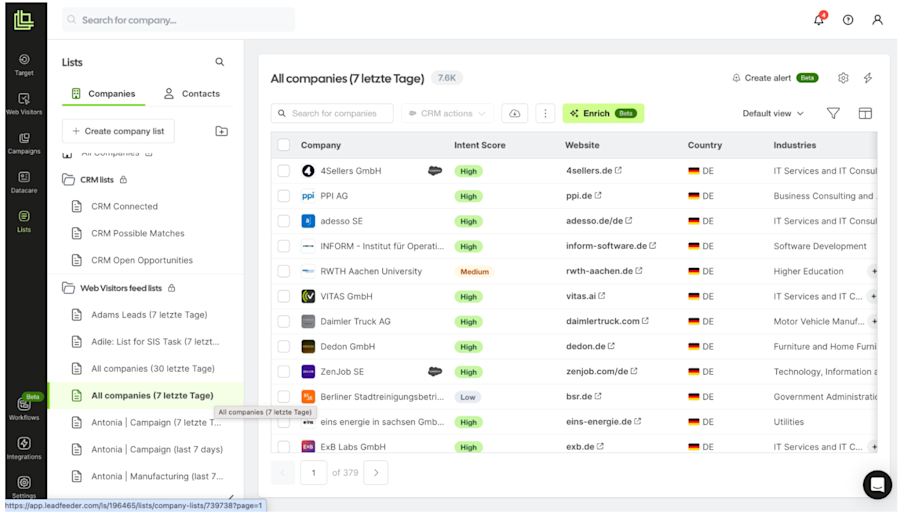
Start by creating or opening a list in Leadfeeder. Your candidates can come from:
Web Visitors: companies identified from your website traffic that match your ICP filter
Target: outbound prospecting from firmographic search
CRM imports: accounts already in your pipeline with research gaps
CSV imports: any external list you want to qualify
At this stage your list is a candidate list, not a qualified list. Every account on it is a possibility, waiting to be understood better.
Tip: If you're running this process for the first time, start with 50 to 200 accounts. Validate the qualification logic on a manageable batch before scaling. It's much faster to refine your criteria on 50 accounts than to fix mistakes that have already been routed to your sales team.
Step 2: Define your enrichment prompt
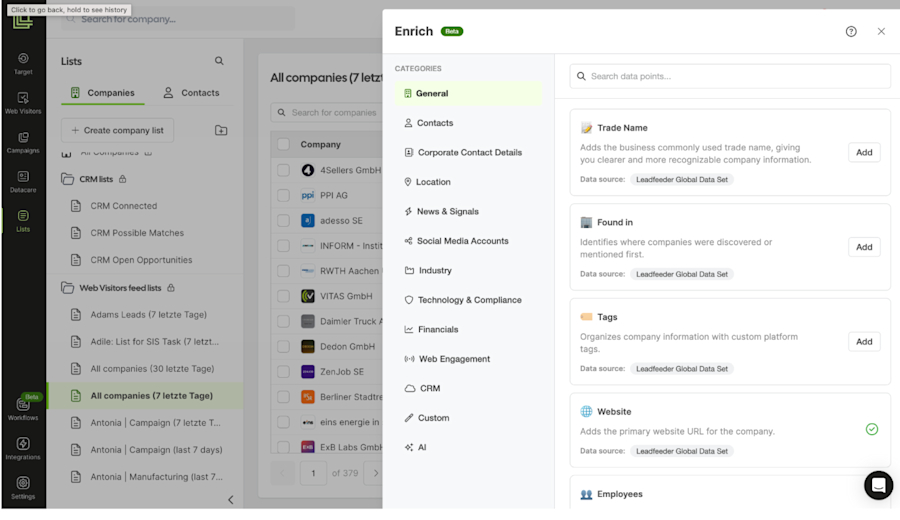
Open the Enrich sidebar inside your list. This is where you write your AI enrichment prompt: a natural-language instruction that tells an AI agent what to research across every company in the list at once.
Think of it as the question you'd give a skilled researcher. Except it runs across all companies simultaneously and returns a structured answer you can sort, filter, and route on.
A few example prompts by use case:
ICP qualification "Research whether this company matches our ICP: B2B SaaS, 50 to 500 employees, EU-based, sales-led GTM motion. Rate ICP fit 1 to 10 and explain the main reason." Output: ICP Fit Score (1 to 10) + ICP Fit Rationale (text)
Hiring signals "Research whether this company is actively hiring across sales, operations, or international expansion roles. Identify the hiring areas." Output: Hiring Aggressively (Yes/No) + Open Hiring Areas (text)
Sustainability / ESG "Research whether this company publicly communicates sustainability initiatives, ESG commitments, green manufacturing, or carbon reduction goals." Output: Environmentally Friendly (Yes/No) + Sustainability Score (1 to 100) + ESG Summary (text)
Tech stack "Research whether this company uses HubSpot as its CRM. Return Yes if confirmed, No if not found, and note any related tools mentioned." Output: Uses HubSpot (Yes/No) + Notes (text)
Choose the output format based on what you'll do with the answer:
Score (1 to 10 or 1 to 100): great for ranking, sorting, and use as a Workflow condition
Yes/No: great for filtering
Text summary: great for SDR context before a call
Numeric value: great for thresholds in Workflows
Tip: Combine output types in a single prompt. One prompt can return a score and a text explanation. Use the score for filtering; use the text for SDR context.
Step 3: Run the enrichment across your list
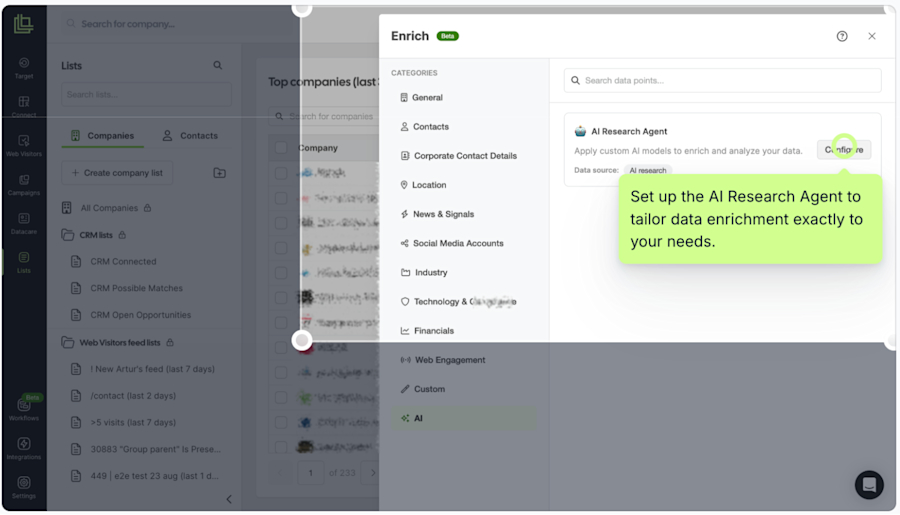
Once your prompt is configured, run the AI enrichment. The agent performs live web research for every company in your list and writes the results back into dedicated fields.
What happens in the background:
The agent searches publicly available web sources for each company
It evaluates the evidence against your prompt criteria
It classifies, scores, or summarises based on your output format
Results appear as new sortable, filterable columns in your list view
Within minutes, hundreds of companies that were previously just names on a list become a researched, structured dataset your team can act on.
Pro tip: Run a small preview batch first. Review 10 to 15 results and check whether the prompt is returning the depth and accuracy you need. Refine the prompt before scaling to the full list.
Note for EU teams: AI enrichment works at the company level using publicly available web data. This makes it compatible with GDPR-appropriate prospecting. You're researching organisations, not individuals.
Step 4: Filter and prioritise using enrichment outputs
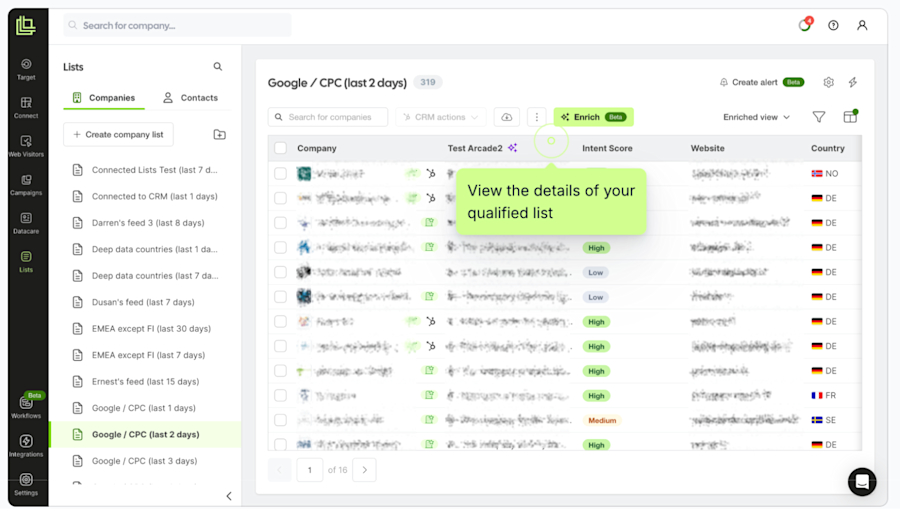
With enrichment complete, your list has new fields. ICP Fit Score. Hiring Aggressively yes or no. Sustainability Score. Whatever you asked the agent.
This is where you build the prioritised work queue your sales team needs.
Example filters you can apply:
ICP Fit Score ≥ 7 → Tier 1 accounts
Environmentally Friendly = Yes AND company size 100 to 500 → sustainability campaign targets
Hiring Aggressively = Yes AND industry = SaaS → expansion play
Uses HubSpot = Yes → integration-led outreach
Combine enrichment outputs with existing filters (industry, company size, website visit frequency, CRM stage) to create a precisely targeted shortlist. Sort by score descending to surface your best-fit accounts at the top.
This becomes your daily or weekly prioritised work queue. Built from research, not assumptions.
Step 5: Find decision-makers in bulk
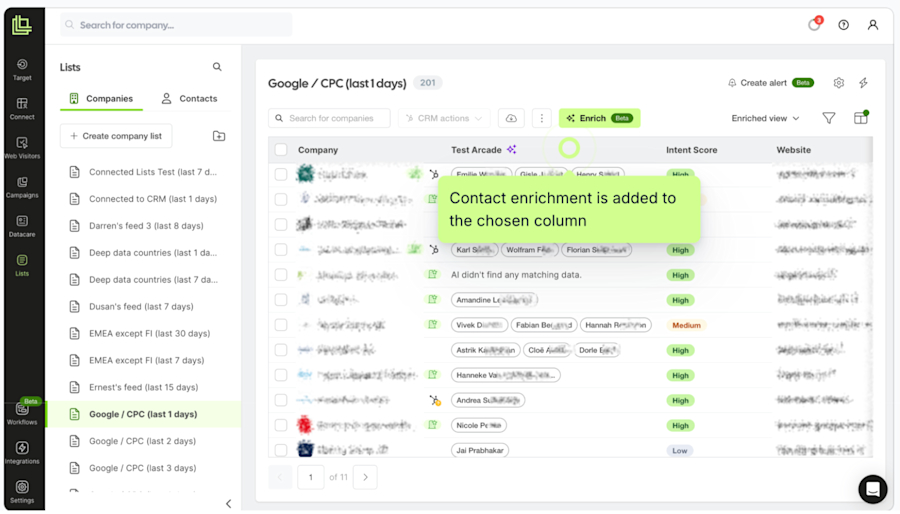
Once you have a filtered list of qualified accounts, open the Enrich sidebar — the same place you wrote your enrichment prompt. Inside, you'll find the Best-Fit Contacts agent. Run it to find the right decision-makers across every company at once.
Configure:
The role or function you're targeting (e.g. VP of Sales, Head of Procurement, CMO)
The number of contacts per company
Fallback roles if the primary isn't found
The agent runs across every company in your filtered list and surfaces contacts with verified email and phone where available.
The result: a prioritised account list with contacts already attached. Ready for sequence enrolment, CRM push, or direct outreach.
Step 6: Promote the motion to a Workflow
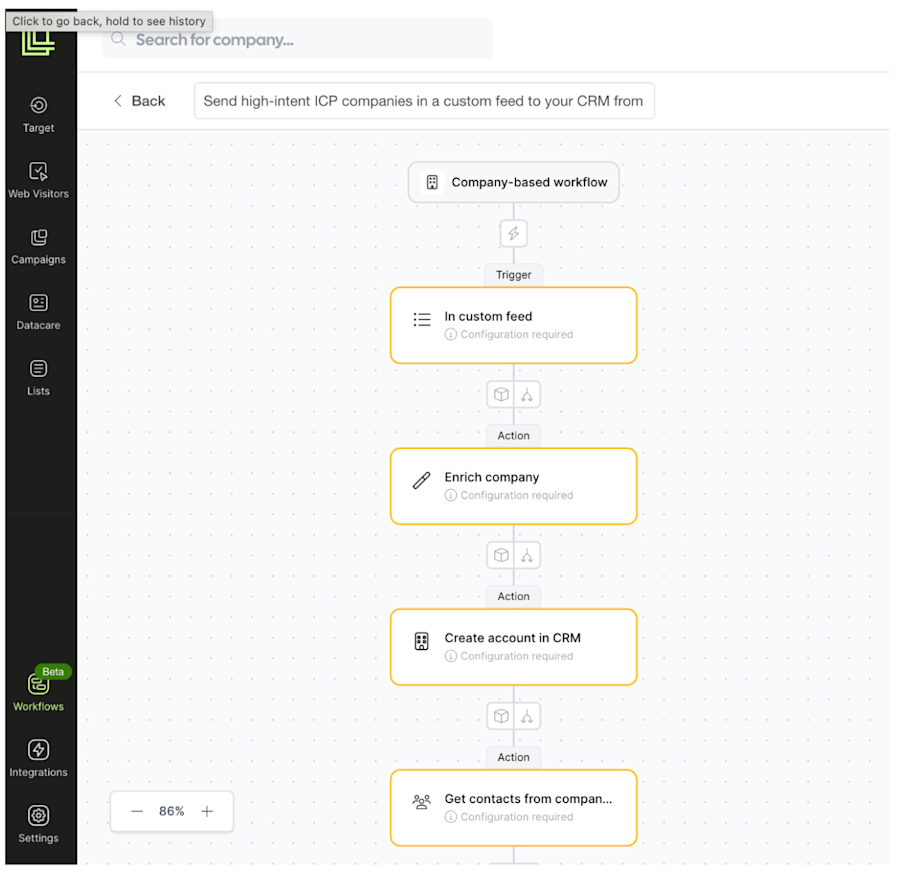
Once your enrichment prompt works and your filtering logic is validated, you don't need to run this manually every week. That's what Workflows are for.
A Workflow runs the same logic as an automated process, continuously in the background, using triggers → conditions → actions. Anything you can filter or score in a List works as a Workflow condition. No rebuilding, no relearning.
Example: AI agent ICP qualification on autopilot
Trigger: New company added to the "Website Visitors - ICP Target" list
Condition: Company size between 100 and 500 employees AND industry = SaaS
Action: Enrich with AI Agent → "Rate ICP fit 1 to 10"
Condition: ICP Fit Score ≥ 7
Action: Find best-fit contact (VP of Sales) → Create CRM task → Send Slack alert to SDR owner
Example: Self-refreshing outbound list
Trigger: New company matches target segment from Target
Action: Enrich with AI Agent → "Is this company actively hiring in operations or logistics?"
Condition: Hiring Aggressively = Yes
Action: Add to "Hot Outbound" list → Push to CRM → Assign SDR owner
The power here is continuity. New visitors that qualify get enriched and routed the moment they appear. Not when someone remembers to log in and check.
One system, two modes. Lists are where you decide what works. Workflows are where you scale what works. The same logic runs manually in Lists and automatically in Workflows.
For the full walk-through on building, validating, and scaling Workflows, see: How to Stop Rebuilding Your Lists Every Week, and Let Workflows Do It Instead.
What to do next
Once you've researched and qualified your list, the next steps turn these insights into pipeline.
1. Action your prioritised accounts
Start with your Tier 1 accounts (those that passed both your firmographic filters and your enrichment criteria). These are the accounts your team should be reaching out to today, with the research and contacts already attached.
2. Personalise outreach with the research output
Use the enrichment text outputs to make outreach relevant. If the agent's research surfaced that a company is actively hiring SDRs in EMEA, lead with that. If it surfaced a sustainability commitment that matches your pitch, reference it directly. The research is there to make the first message land.
3. Build your second enrichment prompt
The first prompt usually covers ICP fit. Once that's working, add a second prompt for a different angle: tech stack, expansion signals, ESG positioning, or whatever your next campaign needs. Each new prompt becomes a new field on the same list, and a new condition you can use in Workflows.
4. Move the validated logic into Workflows
Once the same enrichment prompt has produced consistent, useful output across two or three runs, encode the qualification logic as a Workflow. From that point on, the motion runs continuously without weekly rebuilds.
5. Refine the prompts based on SDR feedback
After two to four weeks, sit down with the reps working the routed accounts. Are the qualified accounts feeling right? Is the research output useful in their conversations? Adjust the prompts based on what the team is seeing in the field.
Expected results
When you enrich Lists with an AI Agent and connect it to Workflows, the shift you'll notice is speed and context, both at once.
Before this, teams either had rich context on a handful of accounts (because someone researched them manually) or a big list with no context at all. With AI enrichment at list scale, that trade-off disappears.
Research done at list scale. A prompt you'd normally apply to 10 priority accounts now runs across your entire list. Every company gets the same depth of research.
A prioritised pipeline you can defend. Instead of "I filtered by industry and size", you can say: "These accounts were scored based on live web research against our ICP criteria." The output is explainable and repeatable.
Faster time to first touch. When enrichment and contact discovery run in the background via Workflows, SDRs start each day with a prioritised queue of researched accounts. Not a raw list to wade through.
Outbound that doesn't go stale. Workflows keep your lists current. New companies that match your criteria get enriched and routed the moment they appear, without anyone manually triggering the process.
Steal our free template: AI enrichment prompt library
Use these prompts as a starting point. Customise the criteria, adjust the output format to match your workflow, and combine with Workflow conditions to automate the motion.
Campaign audience fit "Research whether this company would be a relevant audience for a webinar or campaign focused on [topic]. Consider their likely challenges, team size, and tech context. Rate relevance 1 to 10 and explain why." Output: Campaign Relevance Score (1 to 10) + Rationale (text)
ICP scoring "Research whether this company is a strong ICP match for a B2B SaaS product targeting revenue operations teams at 50 to 500-person companies in Europe. Rate ICP fit 1 to 10 and list the main reasons." Output: ICP Fit Score (1 to 10) + Rationale (text)
Hiring and growth signals "Research whether this company is actively hiring across sales, SDR, business development, or expansion roles. Identify which areas they are hiring in." Output: Hiring Aggressively (Yes/No) + Hiring Areas (text) + Growth Stage Score (1 to 10)
Tech stack qualification "Research whether this company uses Salesforce as its primary CRM. Return Yes if confirmed, No if not found." Output: Uses Salesforce (Yes/No) + Notes (text)
Sustainability / ESG targeting "Research whether this company publicly commits to sustainability, ESG goals, carbon reduction, or environmentally responsible operations." Output: ESG Committed (Yes/No) + Sustainability Score (1 to 100) + Summary (text)
Fleet and logistics dependency "Research whether this company likely operates a large vehicle fleet, logistics network, or field service operations based on its business model." Output: Fleet Dependent (Yes/No) + Fleet Score (1 to 10) + Indicators (text)
Market expansion signals "Research whether this company has recently expanded into new markets, opened new offices, or announced international growth plans." Output: Expanding (Yes/No) + Expansion Markets (text) + Expansion Score (1 to 10)